 Spenti
Make your own Spenti room with ChatGPT or Gemini, step by step.
Spenti is a room you live in: receipts pin to a corkboard, the calendar shows your week, a jar shows what is left of your budget. With Make your own, that room can be anywhere you can describe. You name a place, your AI paints it, and Spenti makes the furniture it painted work. This guide walks through every step, with tips for getting a good picture the first time.
- What you need: Spenti, and any AI that makes pictures (ChatGPT, Gemini or another). No AI that paints? Any chat AI can code the place instead.
- What you do: name a place, pick a look, copy one prompt into your AI, bring back the picture and the list it writes, and move in.
- What it costs: nothing. Free on every plan, up to 20 scenes, and Spenti never calls an AI itself.
How it works, in one picture
Spenti’s rooms are not just wallpaper. The corkboard, the calendar and the jar do things: tap the corkboard to see your receipts, flip the calendar to see your week, glance at the jar for what is left. So a new scene needs two things from your AI: a painting with that furniture in it, and a list of where each piece is. Spenti’s prompt asks for both in one reply.
Step 1: open Make your own
In your room, open the menu at the top right and tap the button with your room’s name. Spenti shows your rooms pegged to a washing line: Where to? Swipe to the last card, Make your own, and tap the +.
Step 2: describe a place
Spenti asks Where would you like to live? Anywhere, real or made up, in up to 80 characters. Stuck? Tap More ideas for a few of the sixty ready-made ones, like a sorcerer’s sanctum or a glowing alien jungle.
What makes a good place:
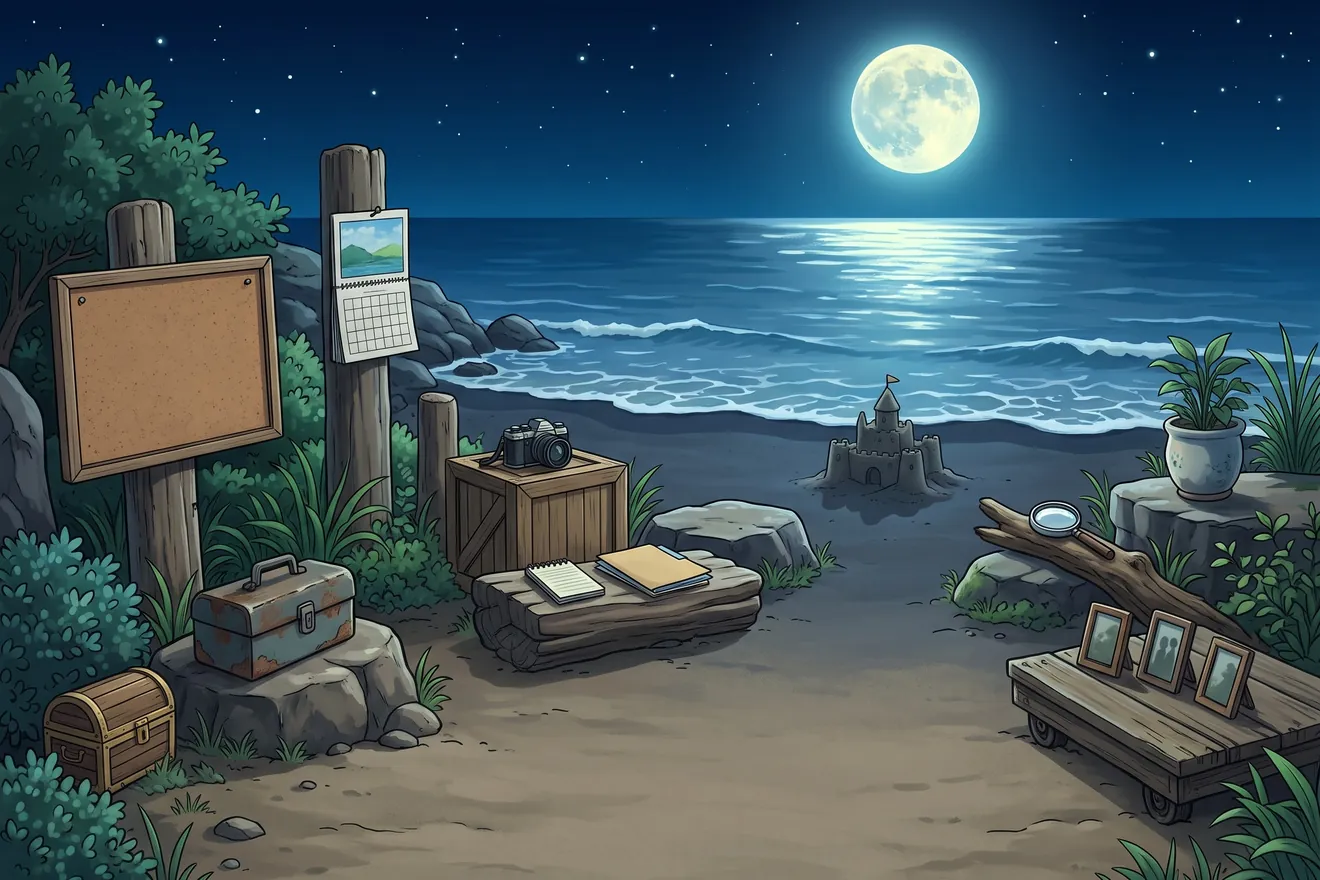
- Three to six concrete things. “Moon, sea, beach, waves, sand castle” paints better than “somewhere relaxing”. Nouns beat moods.
- A time of day or weather. Night, golden hour, rain, snow. It sets the light, and the light sets the feel.
- Room for furniture. The AI has to fit a corkboard, a calendar, a chest and more into the picture. Open spaces (a beach, a campsite, a courtyard, a rooftop) work better than a tight close-up.
- Skip people and words. Your mascot lives there; leave the floor free for them. Text painted into pictures usually comes out garbled.
Step 3: pick a look
Next, In what style? Your AI paints the whole place in this look. A few that work well:
| Look | What you get | Good for |
|---|---|---|
| Anime painting | Soft hand-painted light, like an animated film | Night scenes, nature, cosy rooms |
| Watercolour | Soft colours that bleed on paper | Gardens, seaside towns, calm places |
| Flat cartoon | Bold outlines and simple shapes | Busy places where the furniture must stand out |
| Pixel art | Crisp pixels, like an old video game | Castles, dungeons, space stations |
| Oil painting | Thick paint with visible brush strokes | Landscapes, old houses |
| Pencil sketch | Pencil lines with a little colour | A quiet, notebook feel |
Not sure? Anime painting is the default and the most forgiving.
Step 4: send the prompt to your AI
Spenti writes the prompt for you: Send this to your AI. Tap Copy prompt and paste it into a new chat in ChatGPT, Gemini or any AI that makes pictures, or tap Send to an app… to share it straight into one. It starts like this:
Do two things in one reply.

1. Paint a wide landscape picture, 3:2, in the style of …
2. List where each of these things is in the picture …
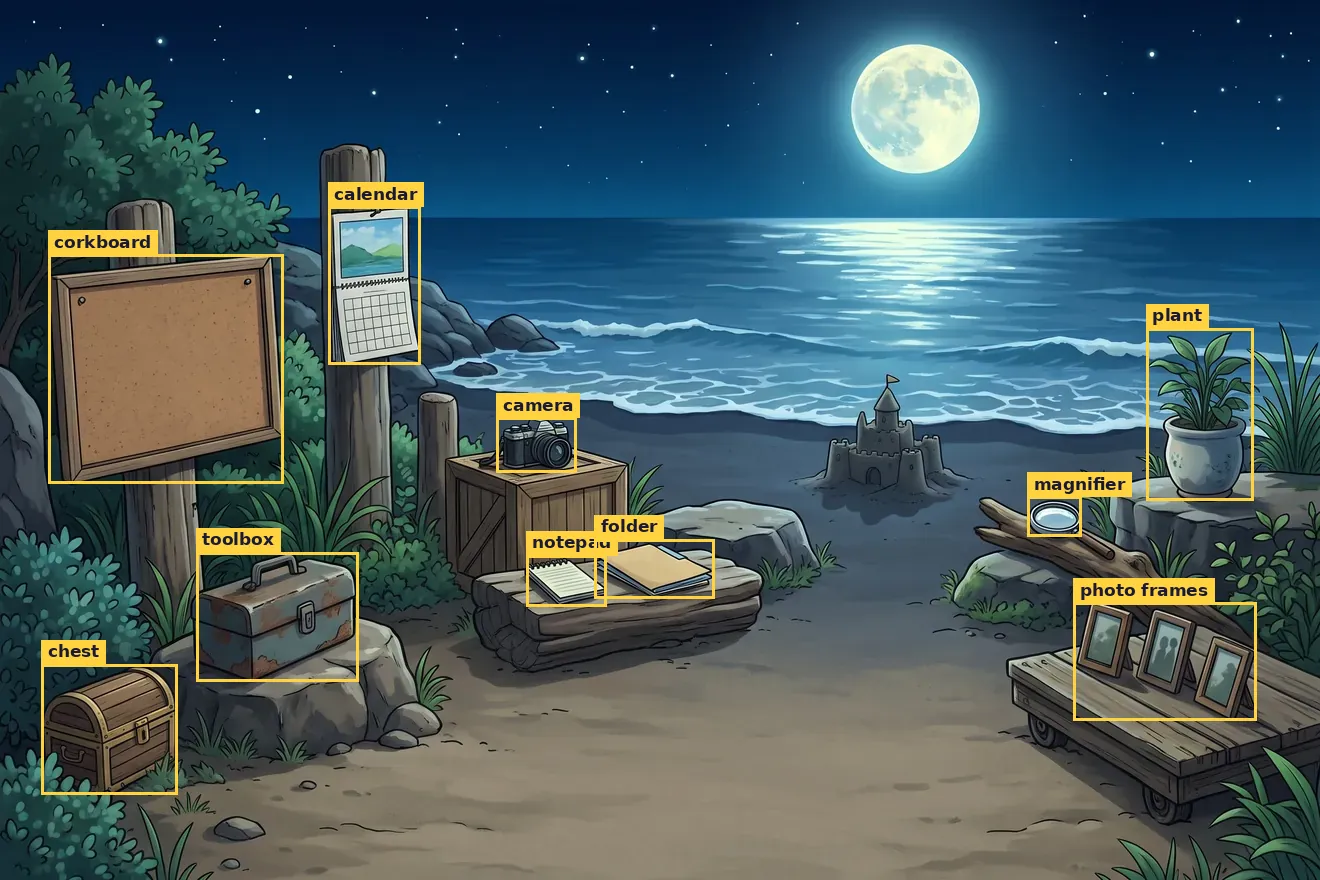
Paste the whole prompt as it is. It already names your place, your look and every piece of furniture the room needs: a corkboard, a calendar, a camera, a notepad, a folder, a toolbox, a chest, a magnifying glass, photo frames and a plant. Editing it is the most common reason the list comes back wrong.
When the AI replies, check two things:
- The picture is wide. If it came back square or tall, reply “Make it a wide 3:2 landscape picture” in the same chat.
- The furniture is visible. Pieces can be small, but not hidden behind something. If the corkboard is missing, ask for it: “Add a corkboard on a post on the left.”
Then save the picture to your photos (on most AI apps, press and hold it, or tap the download button) and copy the list it wrote under the picture. Already have a picture you love? Tap I already have it.
Step 5: bring back the picture
Back in Spenti, Bring back the picture: tap Pick a picture and choose the one you just saved.
Step 6: paste the list
Where did your AI put things? Tap Paste. The list looks something like this; you never need to read or edit it:
[
  {"box_2d": [292, 38, 547, 213], "label": "corkboard"},
  {"box_2d": [237, 250, 412, 317], "label": "calendar"},
  …
]
Each line is one piece of furniture and the box around it. Spenti tells you how many it found, for example Found 10 of 10 things in the list.
No list?
Some AIs send only the picture. Tap Didn’t get the list? Copy the follow-up prompt, paste it into the same chat, and the AI writes the list for the picture it just made. Or tap Skip, I’ll place them by hand and do it yourself in the next step.
Step 7: check the furniture
Tap Place the furniture. Each frame should sit on its thing in the picture: the corkboard frame on the painted corkboard, the calendar frame on the calendar. Drag any that are off. Spenti draws the jar itself, and draws in anything your AI left out, so a missing piece never breaks the room.
Step 8: name it and move in
What do you call this place? Give it a name (you can rename it any time) and tap Move in. Your receipts pin to the painted corkboard, the calendar turns into this week, and your mascot moves in.
Proud of it? Share the scene as a picture, or send it to a friend as a file. You can keep up to 20 scenes and switch between them, and the built-in rooms, from the same washing line.
No picture AI? Code it instead
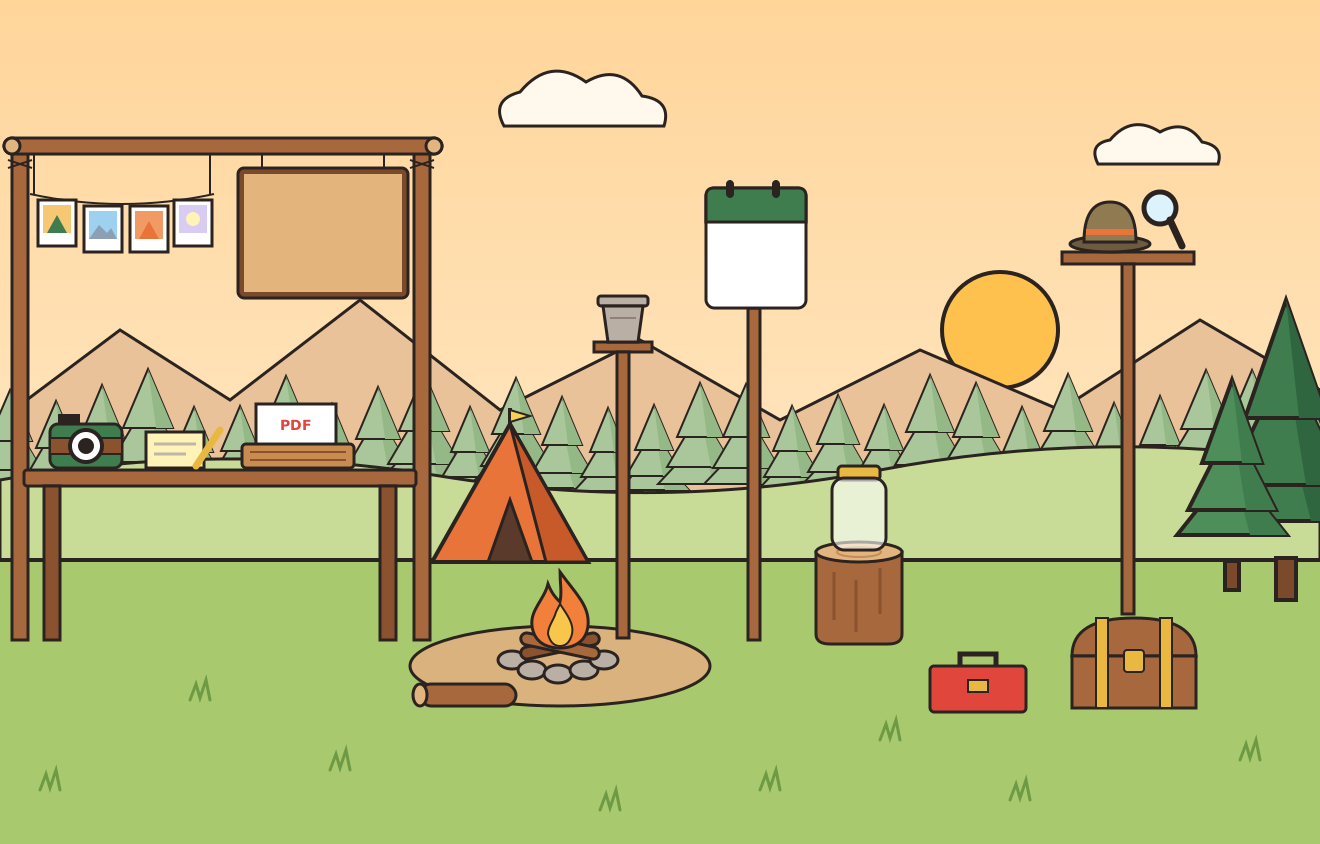
If your AI cannot paint, choose Code it instead of Draw it. Spenti’s prompt then asks any chat AI to write the place as a drawing in code, in flat cartoon shapes. Instead of picking a picture, you paste what it writes, and Spenti draws the place from it.
Your AI, your account, your spending stays home
Spenti never calls an AI itself, and the prompt holds only the place, the look and the furniture: never your receipts or amounts. You choose which AI to use and paste into it yourself, under that service’s own terms. The finished scene lives on your phone with everything else. Make your own is free on every plan.
Want the rest of the room explained? See what each part of Spenti’s room does.
Frequently asked questions
Does making my own scene cost anything?
No. Make your own is free on every plan, Free included, and so is every scene you make. You use your own AI account (ChatGPT, Gemini or another), under that service’s own terms.
Does Spenti send my picture or prompt to an AI?
No. Spenti never calls an AI itself. It gives you a prompt to copy; you paste it into the AI you choose, and bring the picture and the list back yourself. Your receipts and spending never go into that prompt.
Which AIs work?
Any AI that can paint a picture from text, such as ChatGPT or Gemini. It needs to return a wide 3:2 landscape picture. If your AI cannot make pictures, use Code it: any chat AI can write the place as a drawing in code, and you paste that instead.
What is the list, and what if my AI does not write one?
The list says where each piece of furniture is in the picture, as a box around it, so Spenti knows which painted corkboard to pin receipts to. If the AI only sends the picture, copy Spenti’s follow-up prompt into the same chat. You can also skip the list and place the furniture by hand.
What if the AI forgets something, like the jar?
Spenti draws the jar itself, and draws in any other piece the AI left out. In Check the furniture you can move every frame so it sits on its thing in the picture.
How many scenes can I keep, and can I share one?
Up to 20. Each one can be shared as a picture, or sent to a friend as a file.